
Staff
Viewing, changing and blocking your PIN
Show your PIN, change it, and block a lost or stolen card.
Updated September 2026
Show your PIN, change it, and block a lost or stolen card.
- 01
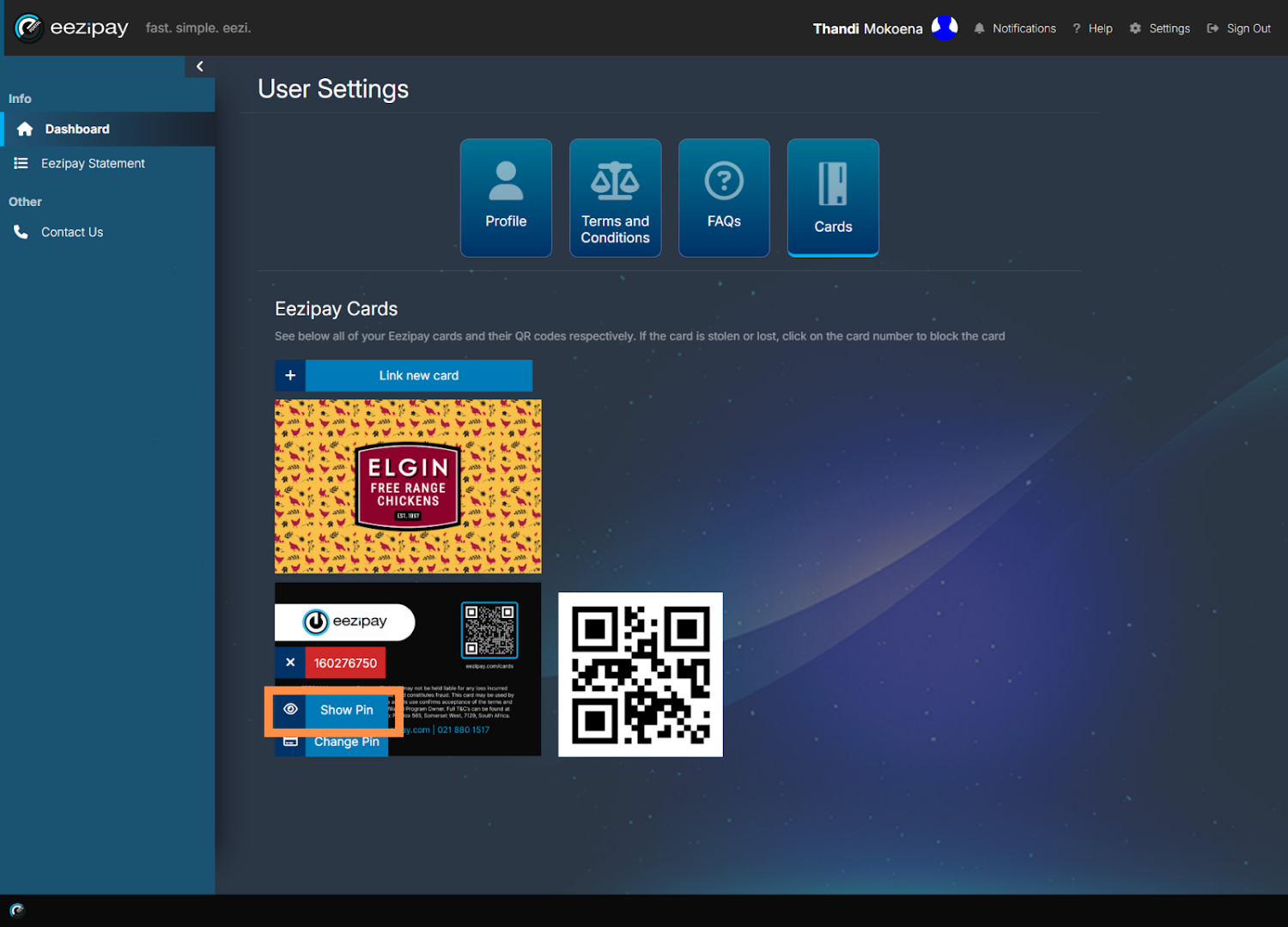
View Pin
To view your pin, click on the Show Pin option available on the card.
- 02
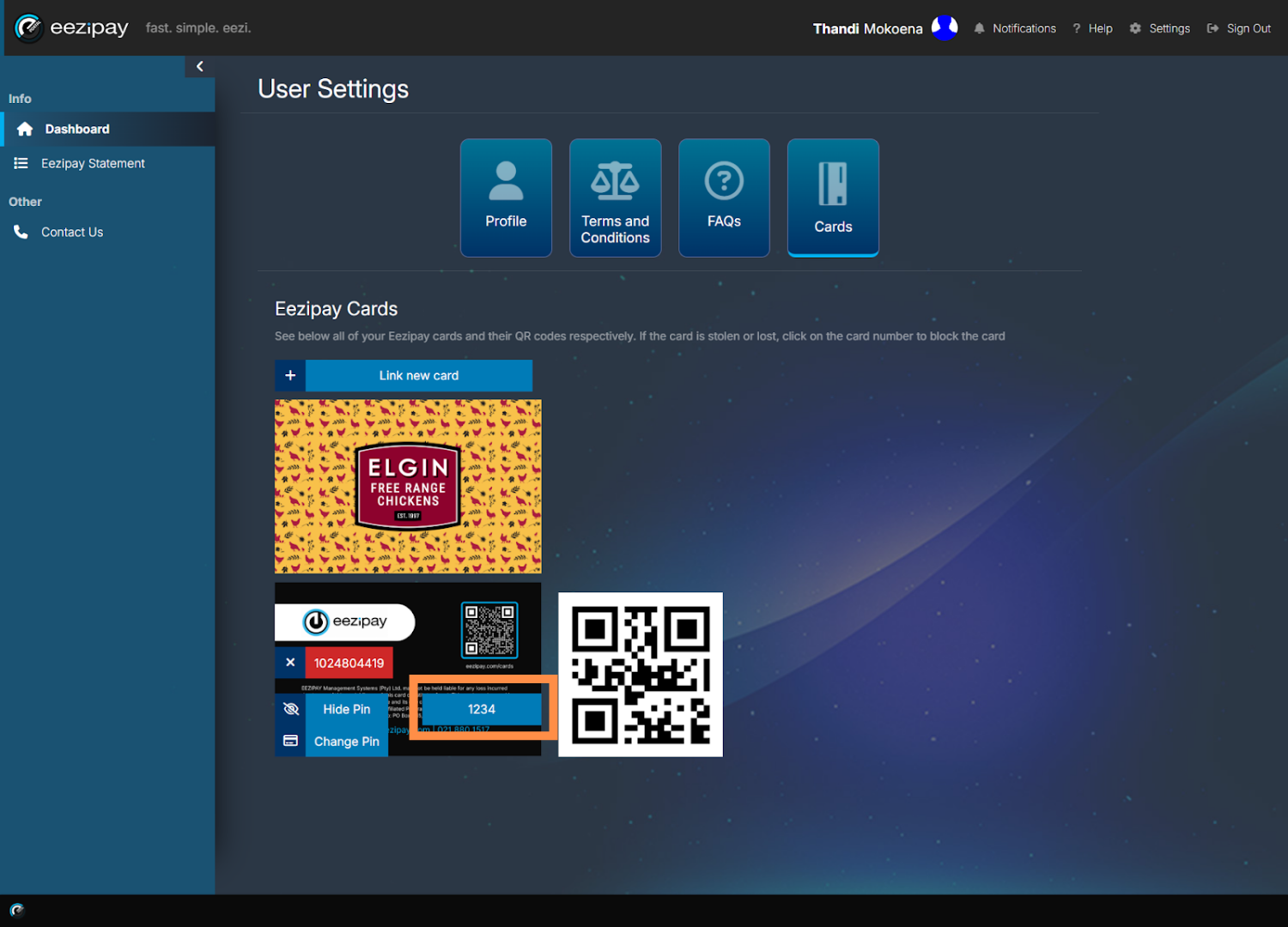
Pin Shown
The application will then display your pin on the card as illustrated.
- 03
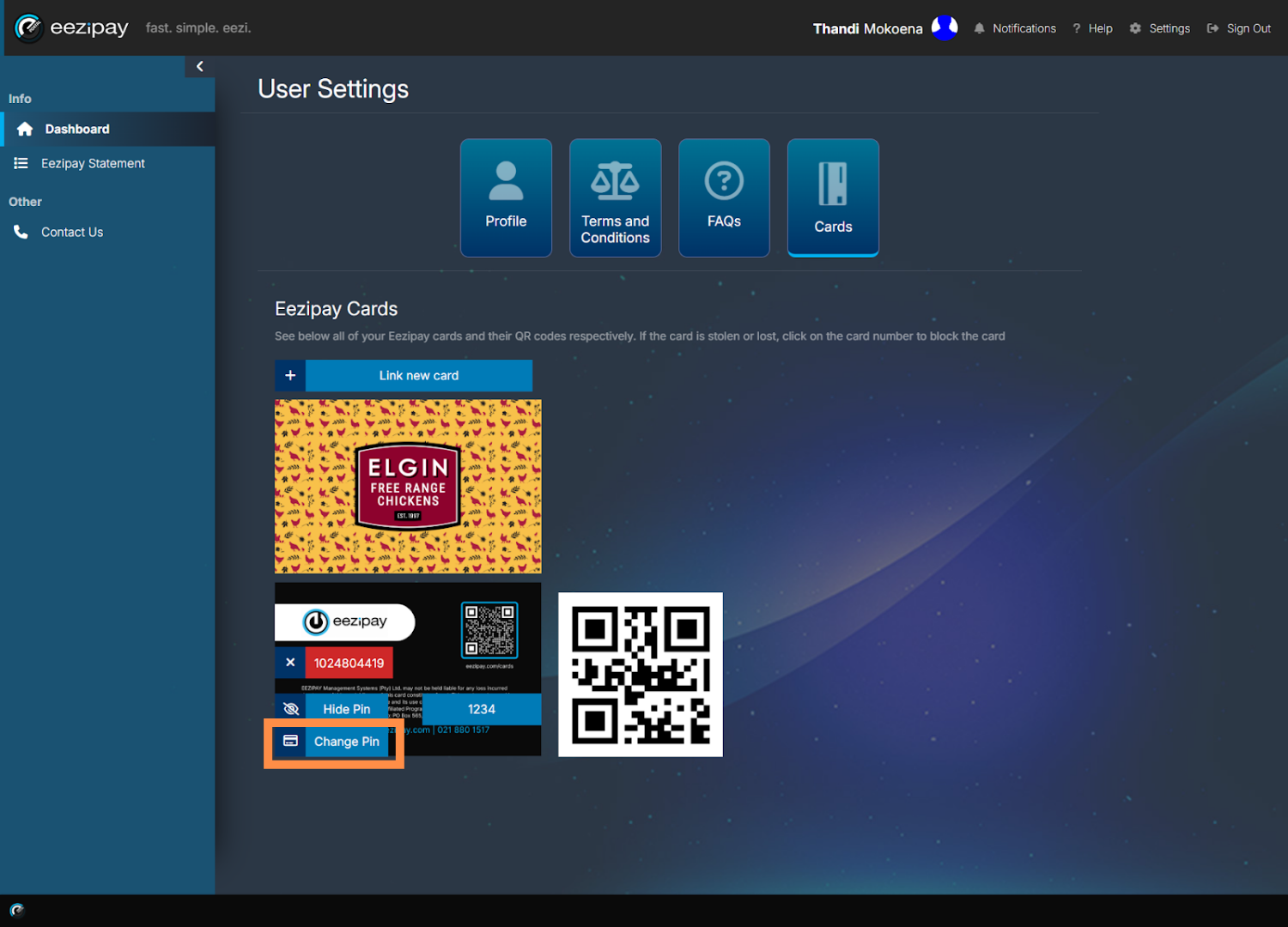
How To Change Your Pin
To change your Pin, click on the Change Pin button available on the card.
- 04
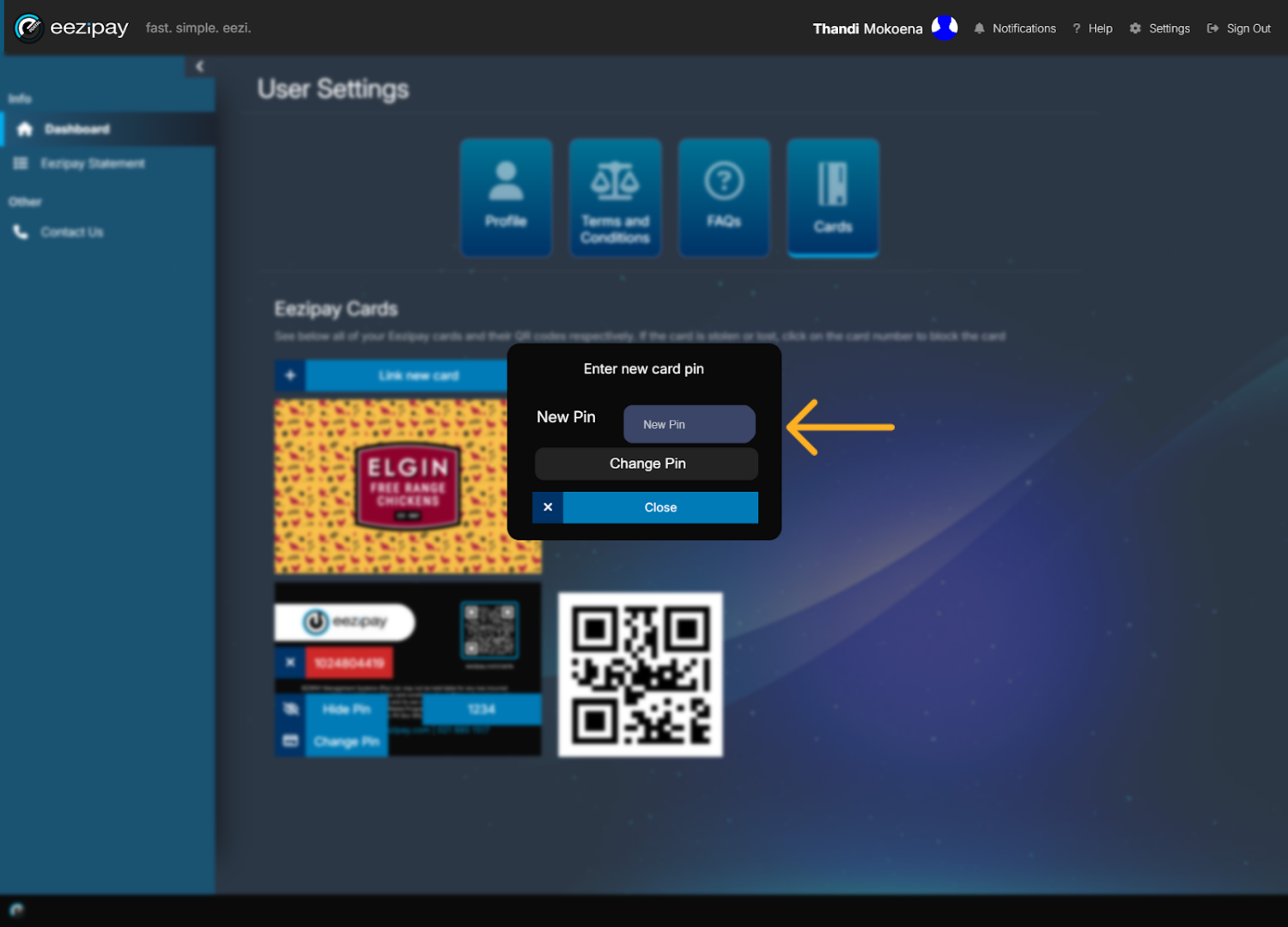
Change Pin
You will then be prompted to enter a New pin. Simply enter your new four digit pin in the space provided and click on the Change Pin button to confirm.
- 05
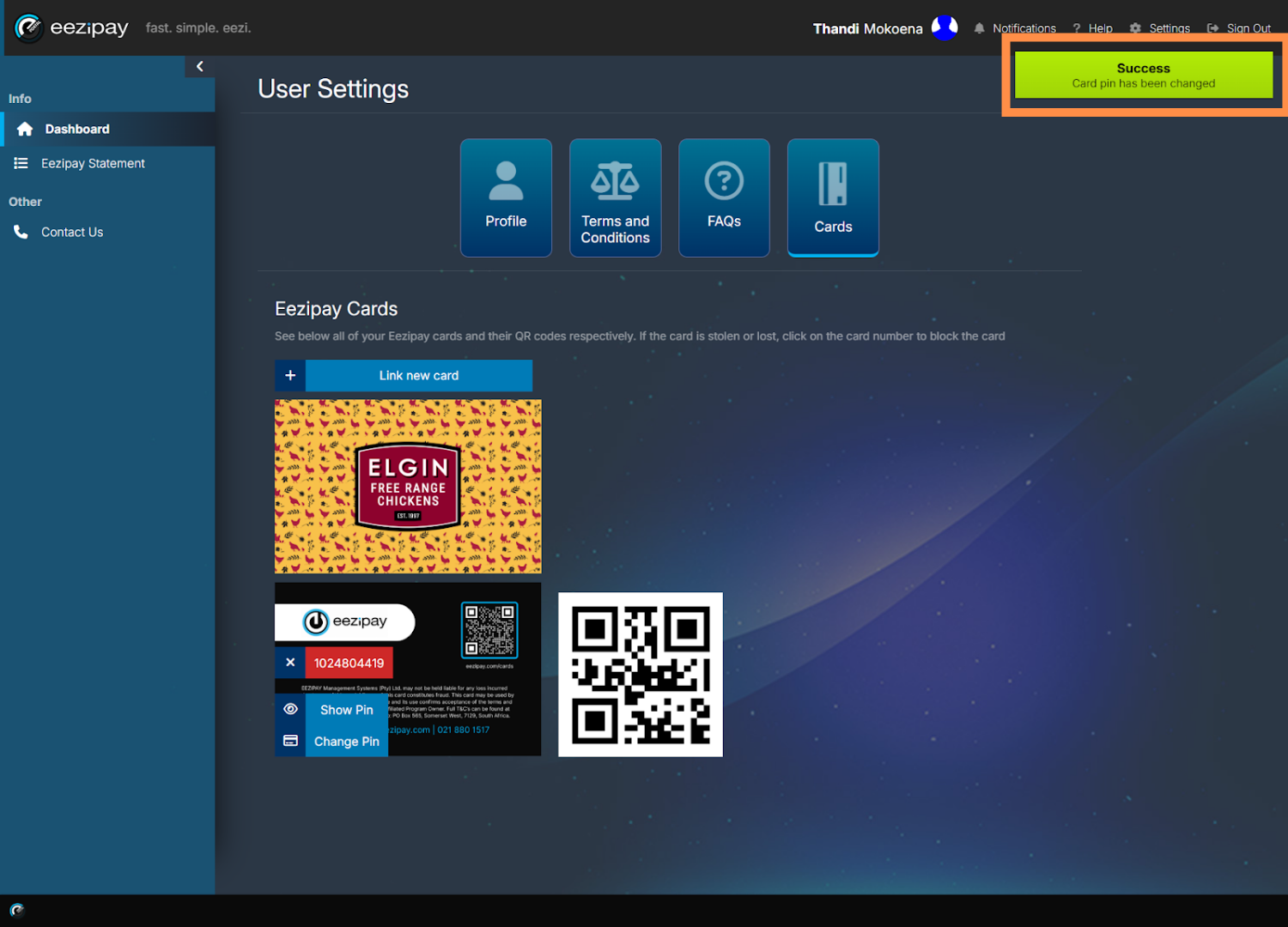
Pin Change Success
The system will then indicate that the pin change has been successful.
- 06
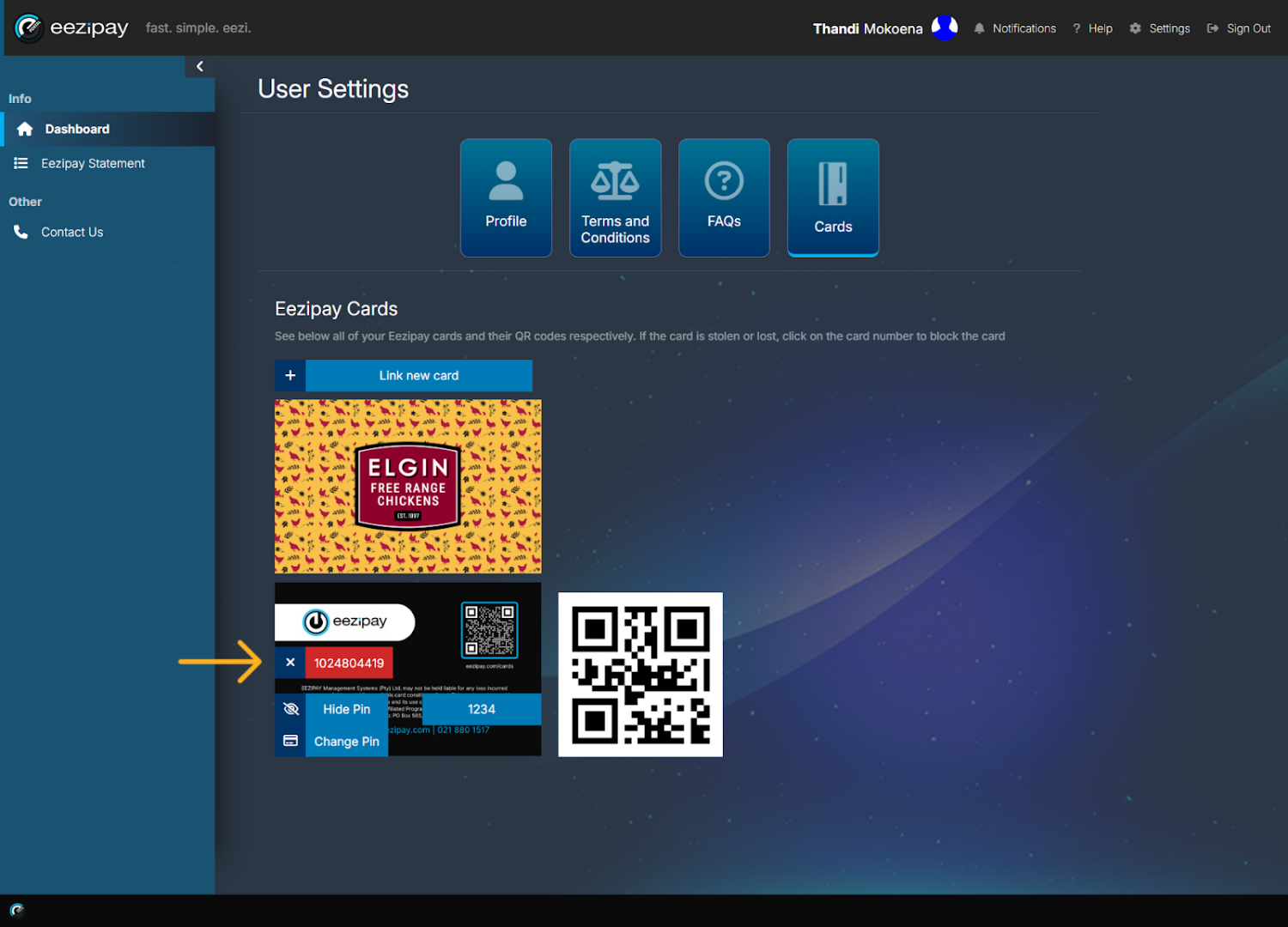
How to Block a Lost or Stolen Card
To block a lost or stolen card, click on the X located on the card you wish to remove and block.
- 07
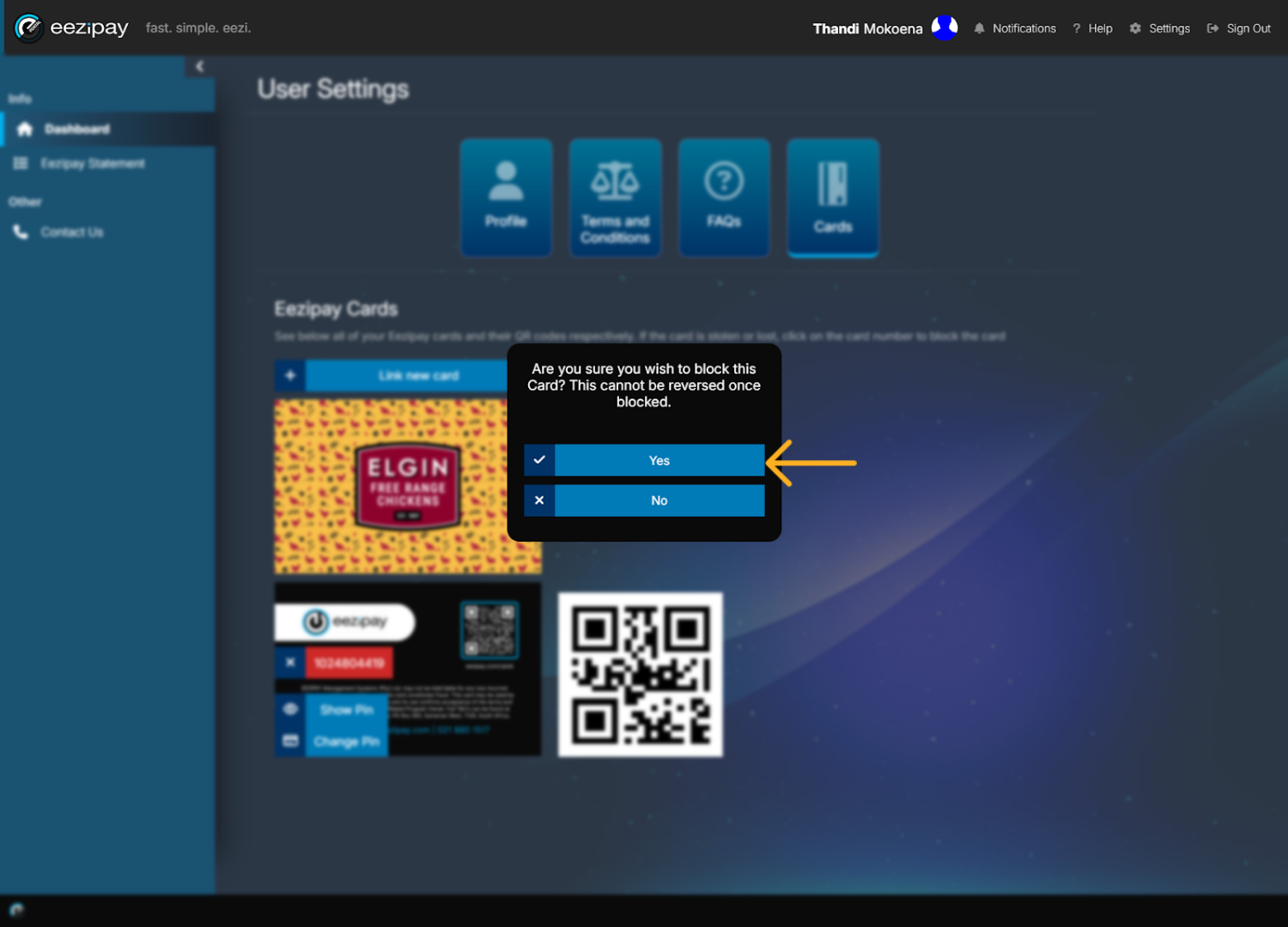
Card Block Confirmation
You will then be prompted to confirm whether you want to block the card. Click the Yes button to confirm.
- 08
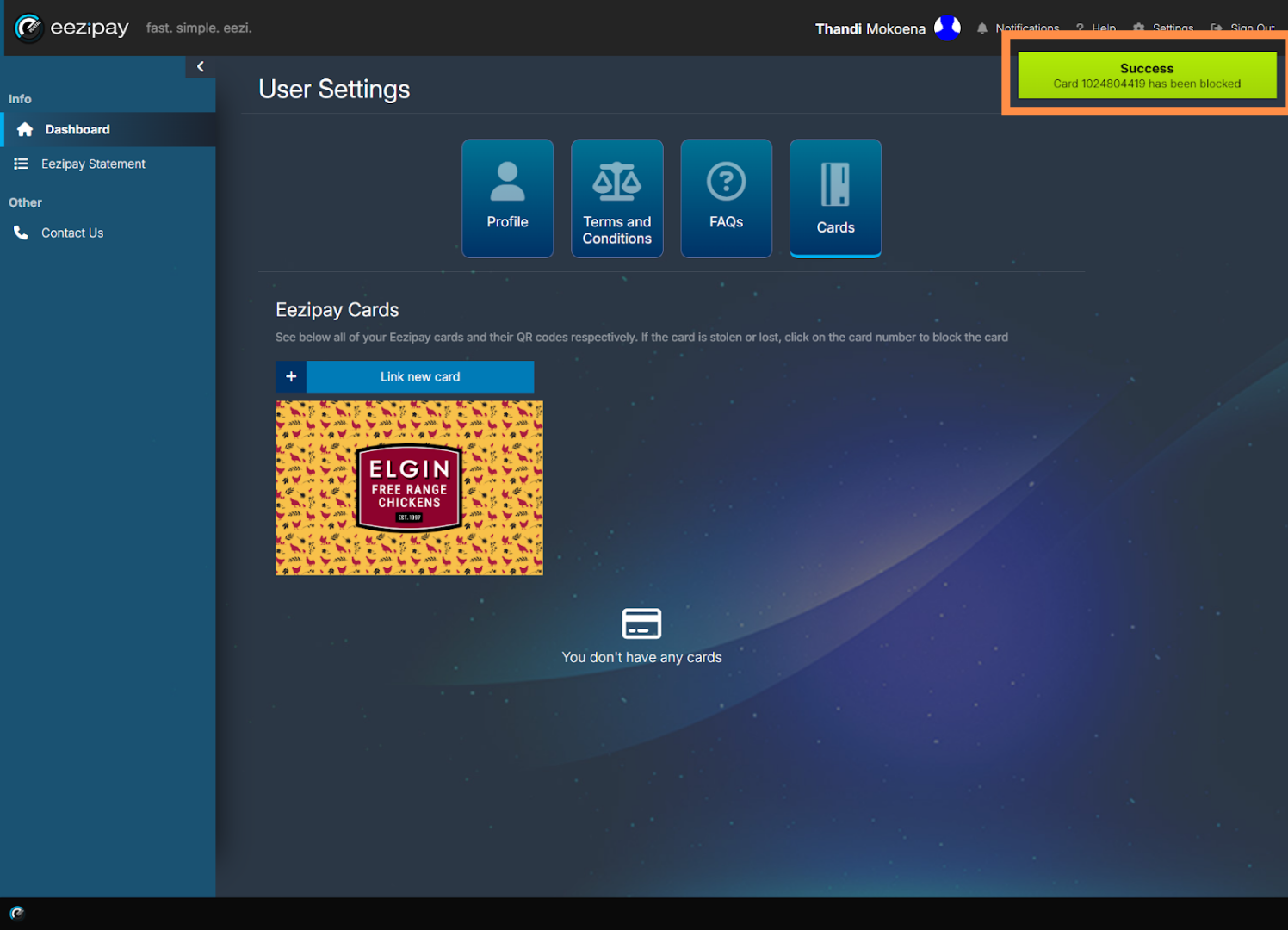
Card Block Success
The system will then indicate that the card was successfully blocked.
Related guides
Still need a hand?
Email support@eezipay.com and the Eezipay support team will help you out.